

Quick Answer
Perplexity uses icons to simplify navigation across web and mobile, covering prompts, voice input, model selection, sharing, sources, and task automation. Key symbols include plus (tools/upload), mic (voice), refresh (regenerate), and sidebar/profile controls for settings, history, and personalization.
Perplexity is not as mainstream as other AI chatbots such as OpenAI’s ChatGPT or Google’s Gemini. In fact, some people are not even aware of its existence. It also received a lot of criticism over the years because of a lack of a unique advantage over other chatbots and continuously shifting product priorities. Despite all those negatives, it’s still my go-to tool for a quick web search and scheduled tasks.. One thing that does not help is the Perplexity icons, which are scattered all over the app and not always self-explanatory.
Perplexity has a unique and very different user interface, packed with its own set of Perplexity icons and symbols that can feel overwhelming when you are just starting out. However, the app went through a lot of experimentation with different interfaces, even changing things very quickly. And very recently, it got a new interface that now looks very close to other AI chatbots and surely better than what it was before.
The problem with these new AI chatbots is that they are still in the growing phase. Because of this, companies are trying different user interfaces, adding new features, and since they are new, many people also find some of the features confusing in the beginning.
I have already written a detailed guide on helping you figure out what each icon and feature mean in the Gemini app, let’s decode all the Perplexity icons and symbols one by one.
Table of Contents
How Perplexity Icons Differ on Web and Mobile
Perplexity is available on both web and mobile, and the interface varies slightly between these two platforms. Think of this as your complete Perplexity AI interface guide, covering every button, tab, and option across both. Let’s get started.
Perplexity Icons on Web
Perplexity Web App Home Screen
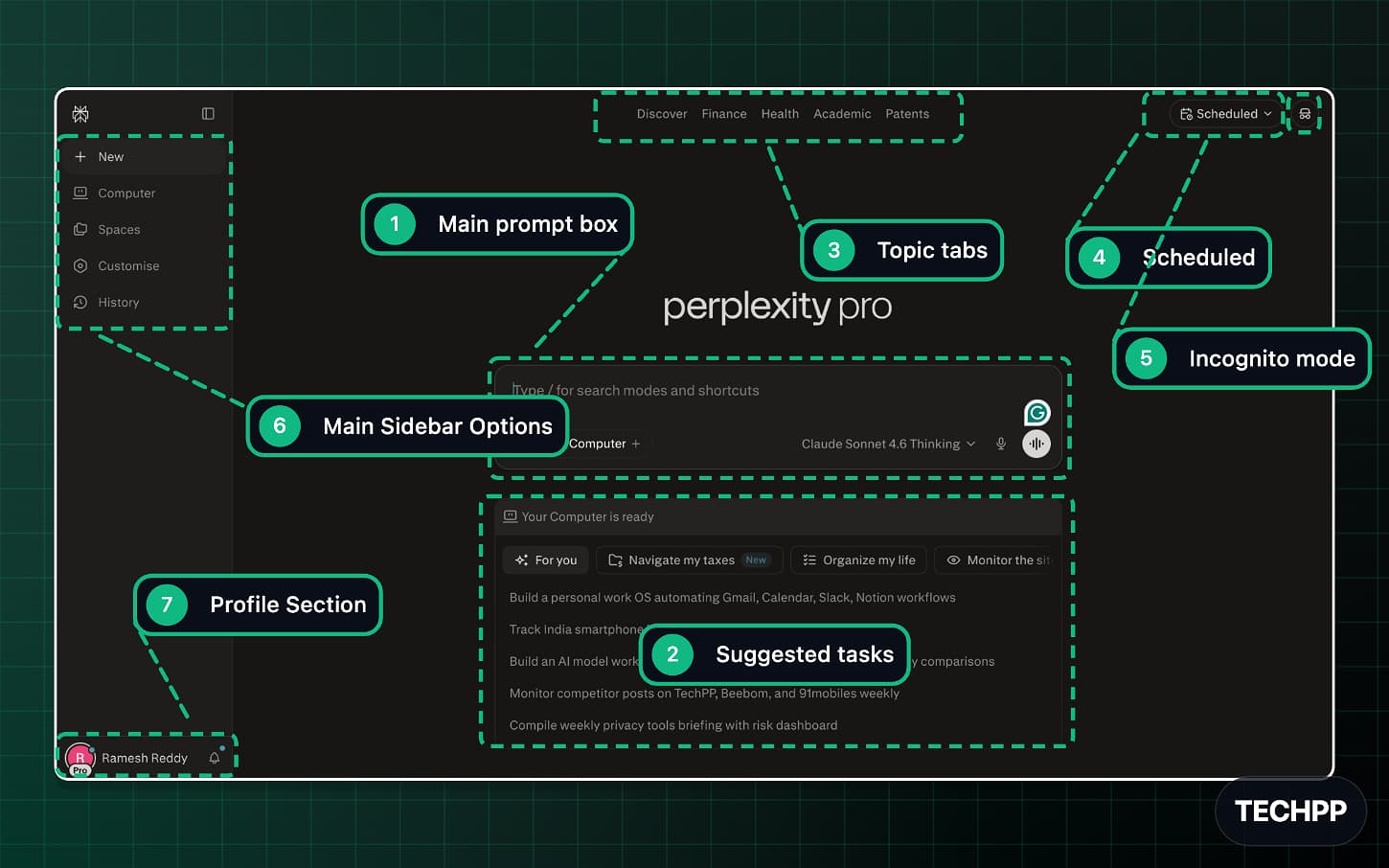
This is Perplexity’s main interface. It is the one you will see when you visit the site. Getting familiar with this page is the starting point for understanding Perplexity navigation. Here is everything that you need to know about the interface:
| Number | Symbol | What it does |
| 1 | Main prompt box | This is where you type your question (prompt) |
| 2 | Suggested tasks | Shows tasks you can assign to your Perplexity computer. |
| 3 | Topic tabs | Switch between different pages. Basically a header navigation. |
| 4 | Scheduled | Opens your scheduled tasks or planned actions. |
| 5 | Incognito mode | Let’s have a chat in incognito mode. Your conversations will not be saved in this mode. |
| 6 | Main sidebar options | This is the main sidebar where you will access the main features. |
| 7 | Profile section | Shows your account and profile-related controls. |
Main Prompt Box
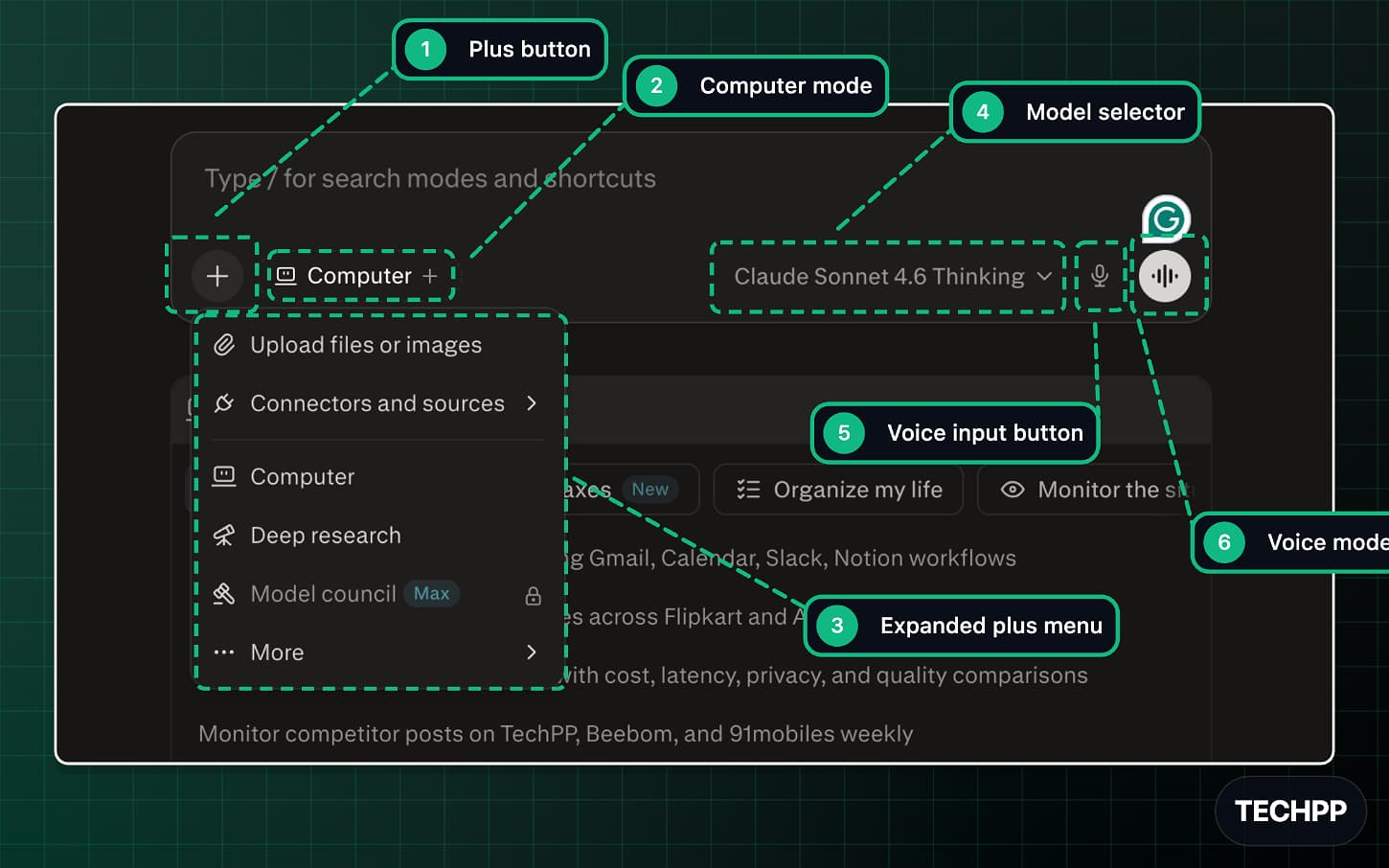
This is the main prompt box that you use most frequently. Here is everything that you need to know about it.
| Number | Symbol | What it does |
| 1 | Plus button | You can attach or access a switch between different features using the plus icon. |
| 2 | Computer mode | Perplexity’s new advanced model that uses your computer in an agentic mode to perform actions on its own. |
| 3 | Expanded plus menu | All the options in the expanded plus menu where you can upload images and connections, switch to deep research, model council, and much more. |
| 4 | Model selector | Switch between different models based on your preference. |
| 5 | Voice input button | Voice input so that you can speak without typing. |
| 6 | Voice mode | A dedicated voice mode, which allows you to have direct one-on-one voice conversations with the models. |
Sidebar Options
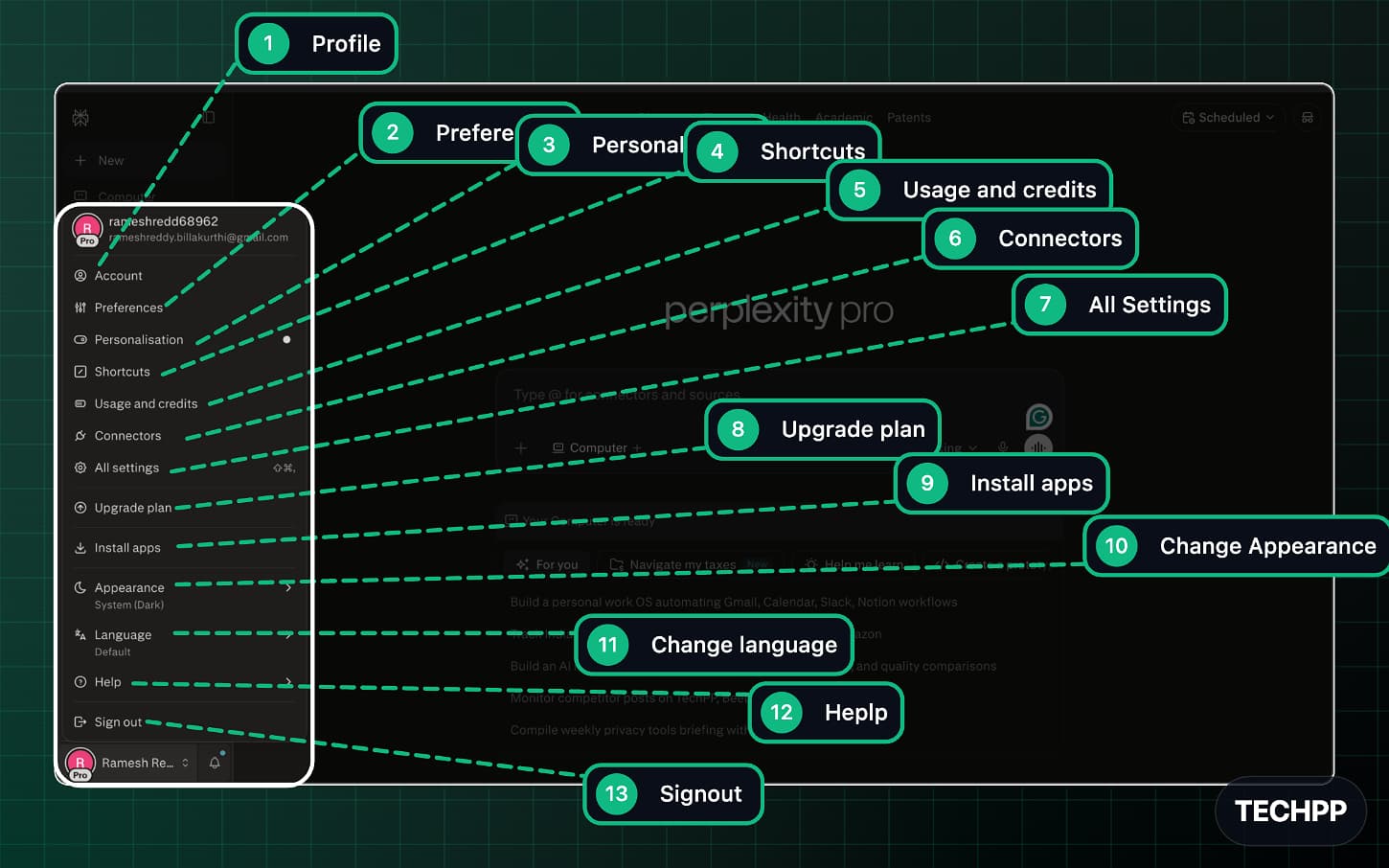
This is Perplexity’s main profile view on the sidebar, which holds a lot of options.
| Number | Symbol | What it does |
| 1 | Profile | It opens all your account-related settings. |
| 2 | Preferences | You can personalize Perplexity’s appearance, including selecting different modes, fonts, output language, and default model, and much more. |
| 3 | Personalisation | This is where you can personalize your model output preferences. You can provide your details, set the maximum output length, and manage memory. |
| 4 | Shortcuts | Set shortcuts for the Comet browser, which is owned by Perplexity. |
| 5 | Usage and credits | Shows your usage details and available credits. |
| 6 | Connectors | Let’s you connect Perplexity with other apps. other apps, tools, and sources. You can also manage connections here. |
| 7 | All Settings | Open the main app settings where you can manage your account details and plans. |
| 8 | Upgrade plan | A suggestion to upgrade your current plan. |
| 9 | Install apps | Another solution that allows you to download apps by Perplexity currently includes Perplexity and also the Chrome Browser. |
| 10 | Change Appearance | You can change the theme. You can currently set it to dark
Or Light or keep the system default . |
| 11 | Change language | Let’s you switch the app language. |
| 12 | Help | Opens help and support options. |
| 13 | Signout | You can sign out of your Perplexity account directly by tapping on it. |
Chat Interface
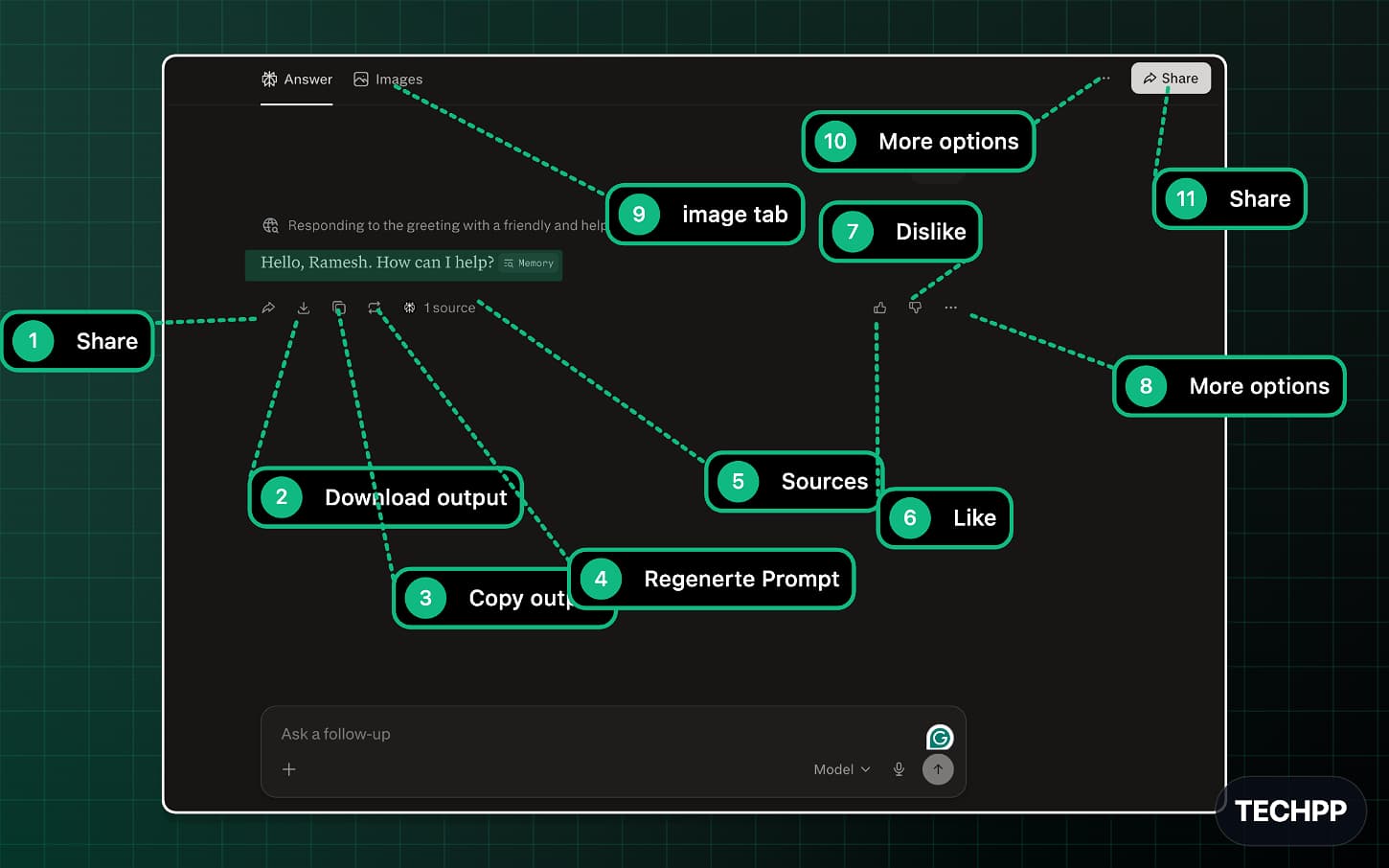
Perplexity’s chat interface also has plenty of options, which can be confusing for beginners. Here is what each icon and option means:
| Number | Symbol | What it does |
| 1 | Share | Share your output with others. |
| 2 | Download output | Download the output. Currently supports PDF, Markdown, and DOCX. |
| 3 | Copy output | Copy the output. |
| 4 | Regenerate prompt | If you don’t like the output, you can regenerate it. You can also regenerate it using other models. |
| 5 | Sources | See what resources the model used to answer your queries. |
| 6 | Like | Give it positive feedback if you like the model output. |
| 7 | Dislike | Dislike the output if the answer is inaccurate or if you don’t like it. |
| 8 | More options | You can save this query as a shortcut or report it. |
| 9 | Image tab | Let’s switch to the image results page for the same query. |
| 10 | More options | It opens page-level options that include: bookmarks, swap, Rename Thread, save File To, export as a PDF, and Delete. It and much more. |
| 11 | Share | Let’s you share the full page or conversation. |
Perplexity Computer

The new Perplexity autonomous agent can perform tasks on your behalf. Currently, it is only available for the Pro and Max users.
| Number | Symbol | What it does |
| 1 | Search tasks | Search existing tasks from the Perplexity computer. |
| 2 | Filter tasks | Filter Your Tasks |
| 3 | Credits | This shows your available credits. You can also add more credits from here. |
| 4 | Main prompt box | This is where you type the main prompt. You can also add files, attach connectors, and use skills. |
| 5 | Model selector | This is where you can switch between different models. Currently, Perplexity Computer supports GPT 5.4, Claude Sonnet 4.6, and Claude Opus 4.6 at the time of writing this guide. |
| 6 | Voice input | You can use your voice input instead of typing. |
| 7 | Voice mode | You can also switch completely to the voice mode. In the voice mode, you can have one-on-one, real-time conversations. |
Voice Mode Page

Similar to the others, Perplexity also supports a dedicated voice mode where you can have one-on-one, real-time conversations with the models. The Perplexity voice mode icon looks like a waveform and sits right next to the standard mic input button, which is a common source of confusion.
| Number | Symbol | What it does |
| 1 | Cancel voice mode | This cancels voice mode and goes back to the chat interface. |
| 2 | Mute your mic | It lets you mute your mic while you are not speaking. This is for more privacy. |
| 3 | Settings | It opens Voice Mode settings. You can change the language and also the voice style |
Perplexity Keyboard Shortcuts
If you are using Perplexity on a desktop, there are a few keyboard shortcuts that can save you a lot of time. Here is what you need to know:
Web App Shortcuts (Windows / Mac)
Shortcut (Windows) | Shortcut (Mac) | What it does |
|---|---|---|
Ctrl + I | Cmd + I | Start a new thread and go to home |
Ctrl + ; | Cmd + ; | Toggle incognito mode on or off |
Ctrl + J | Cmd + J | Jump focus directly to the prompt input box |
Ctrl + / | Cmd + / | Show all available keyboard shortcuts |
Mac Desktop App Shortcuts
Shortcut | What it does |
|---|---|
Cmd + Shift + P | Activate the Perplexity search bar from anywhere |
Cmd + Shift + M | Open voice mode directly |
Cmd + Shift + U | Upload a file to the current prompt |
Cmd + Shift + D | Start voice dictation in the search bar |
Cmd + Shift + 0 | Take a screenshot and attach it to your prompt |
Windows Desktop App Shortcuts
Shortcut | What it does |
|---|---|
Ctrl + Shift + P | Open the Perplexity search bar globally |
Ctrl + Shift + B | Launch voice mode |
You can also type / inside the prompt box on the web app to create and access reusable prompt shortcuts directly, without needing the Comet browser. This is one of the more hidden but useful features in the app.
Perplexity Icons on Mobile app
Mobile Home Screen
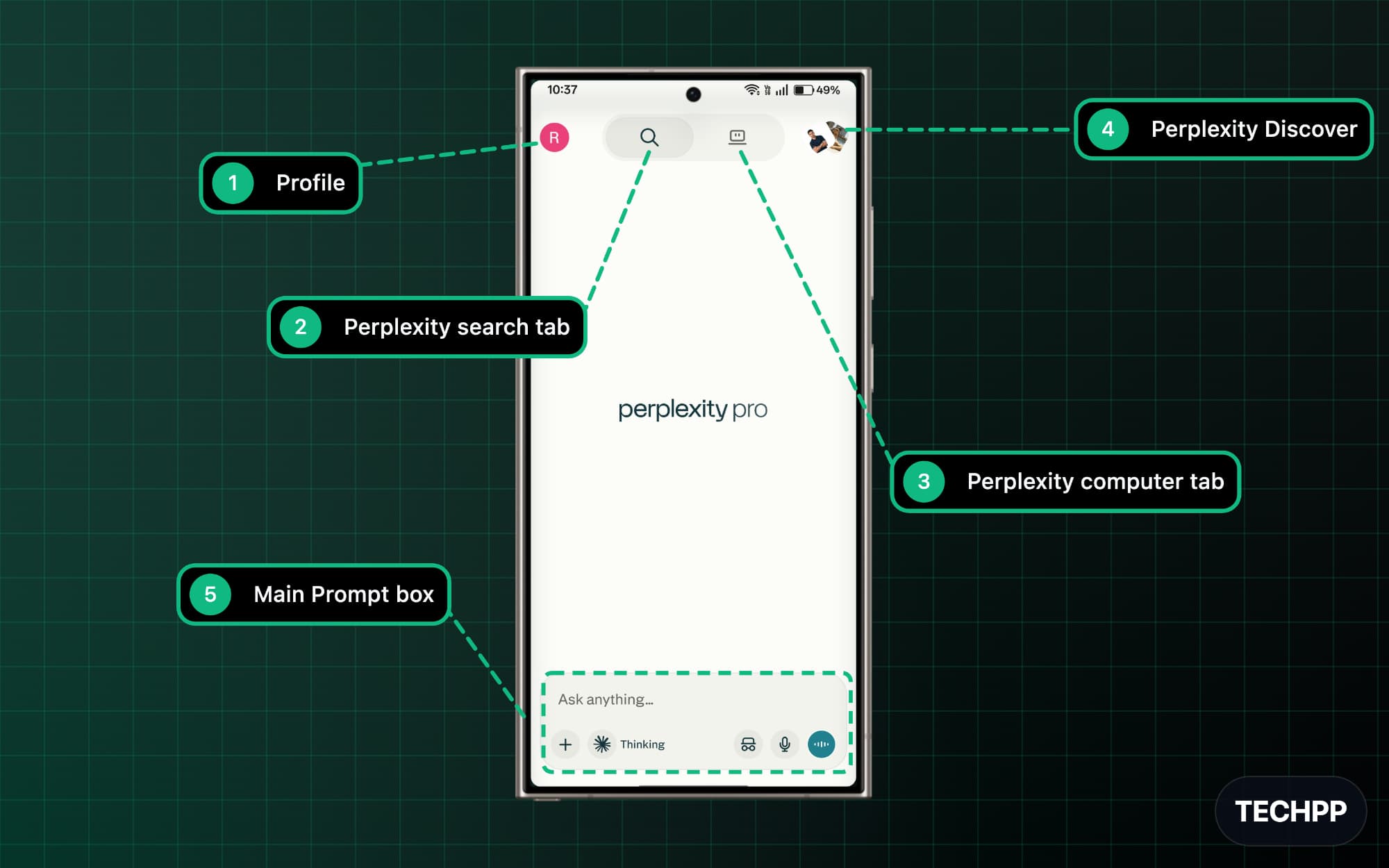
| Number | Symbol | What it does |
| 1 | Profile | It opens your account options, where you will be taken to your chat history. |
| 2 | Perplexity search tab | This is the default mode for the Perplexity app. You can enter questions and get answers |
| 3 | Perplexity computer tab | A Perplexity autonomous agent is also available on mobile. You can switch to the computer tab to use it. |
| 4 | Perplexity Discover | This opens Discover, where you can explore updates, content, or suggested things from Perplexity. |
| 5 | Main Prompt box | This is where you type your question or prompt. |
Mobile Prompt Box
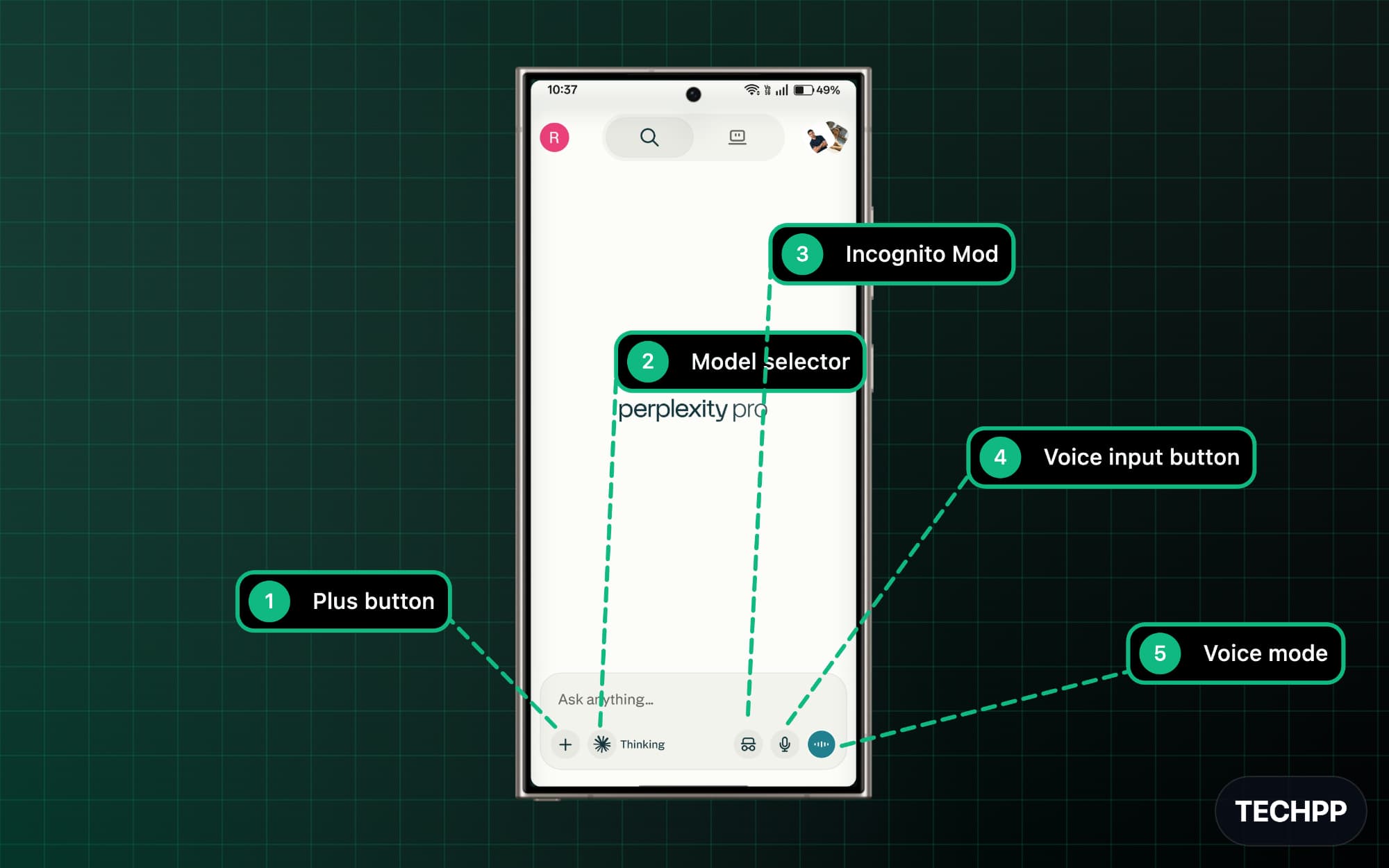
The Perplexity Search Tab. The Perplexity search tab is a must-use, and it also comes with plenty of options, which can be confusing for beginners. Here is what each option is meant to be
| Number | Symbol | What it does |
| 1 | Plus button | This opens more options like image upload, file upload, sources, and other tools. |
| 2 | Mode selector | You can select different models on mobile. |
| 3 | Incognito mode | Use Perplexity in incognito mode. All your conversations will not be saved. |
| 4 | Voice input button | You can just start speaking, and your speech will be converted into text without typing it manually. |
| 5 | Voice mode | Opens a dedicated voice mode that lets you have real-time, one-on-one voice conversations with the model. |
Mobile Plus Menu
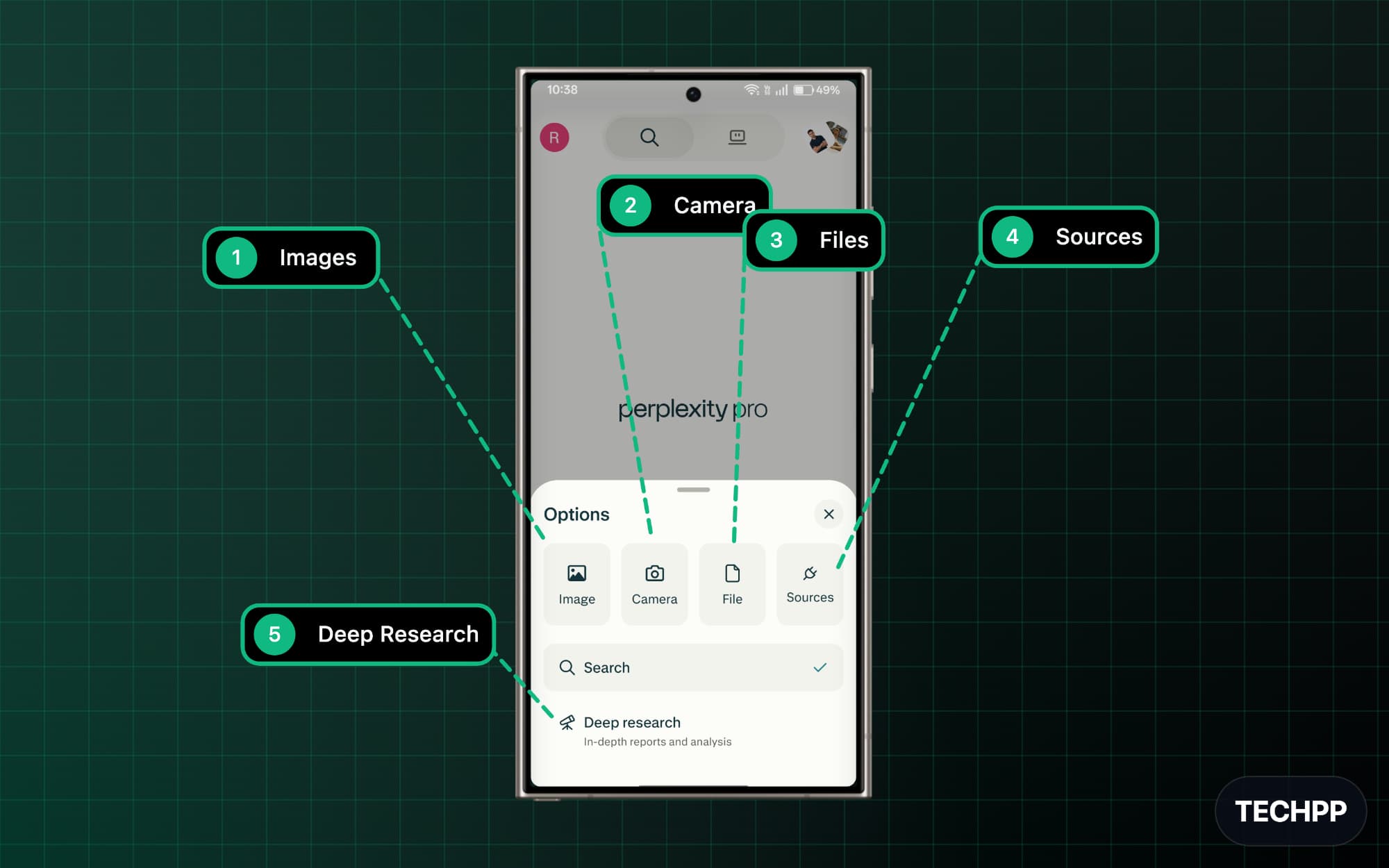
Tapping on the plus symbol opens a dedicated menu on the mobile app with plenty of options. This is also where the Perplexity Deep Research mode lives, which is why many users miss it completely. Here is what each option means:
| Number | Symbol | What it does |
| 1 | Images | Let’s you upload or attach an image along with your prompt. |
| 2 | Camera | Opens your camera so you can take a photo directly. |
| 3 | Files | Let’s you upload a file from your device. |
| 4 | Sources | Let’s you connect or choose sources for your search or task. Currently, the source options include: web, academic, finance, and social. Additionally, you can connect your own apps, such as Google, Gmail, and more. |
| 5 | Deep Research | You can enable Deep Research for more detailed analysis and reports. It takes more time for the model to answer Deep Research questions, and availability is limited depending on your plan. |
Mobile Computer Mode
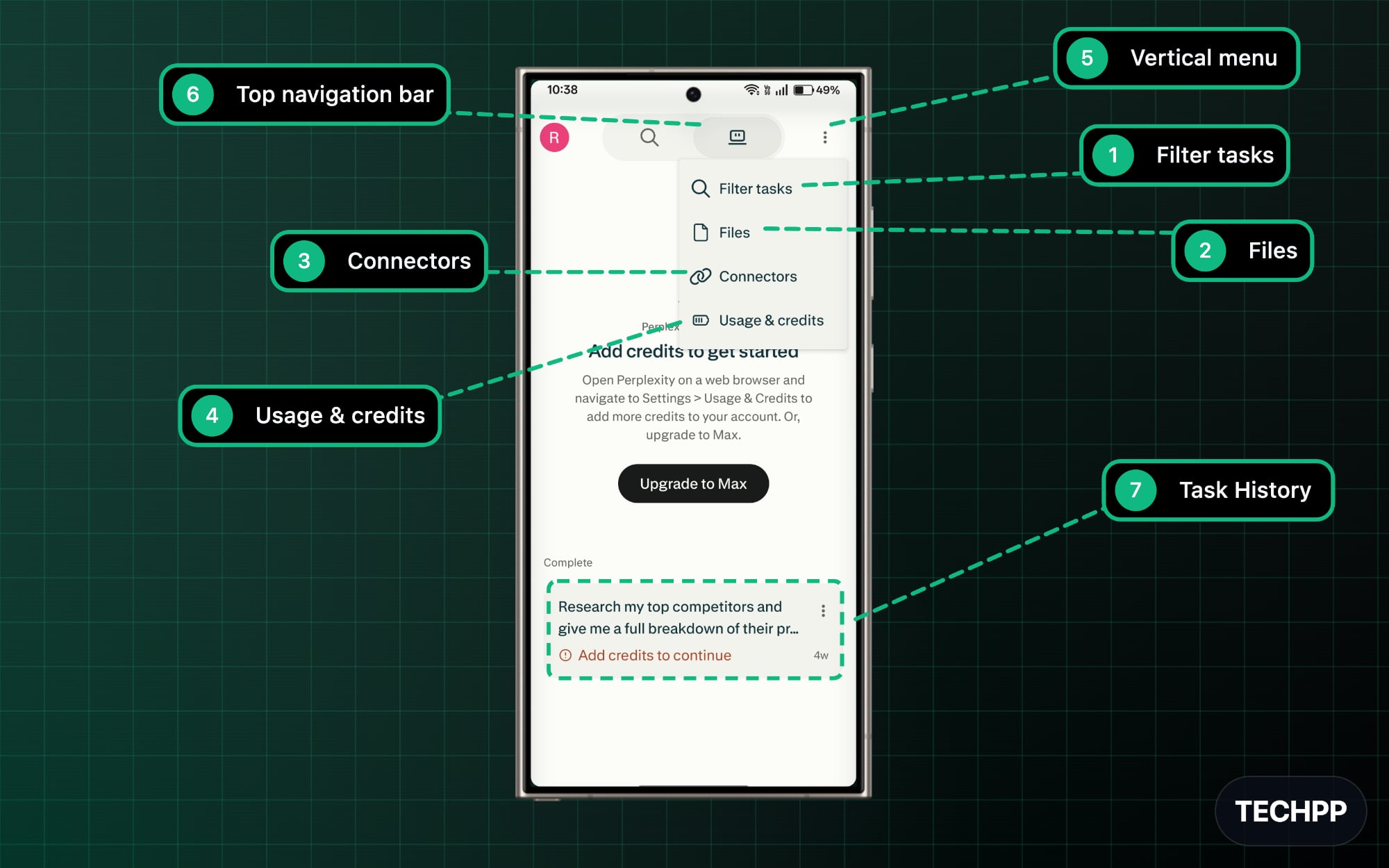
Computer use is also available on the Perplexity mobile app. You can create and add tasks directly on your mobile device, which offers plenty of options. Here is what each option is meant to do:
| Number | Symbol | What it does |
| 1 | Filter tasks | You can filter all the tasks that you have assigned to the computer. |
| 2 | Files | You can access all the files created or uploaded using your computer mode. |
| 3 | Connectors | You can manage all your components here. |
| 4 | Usage & credits | Shows your usage details and available credits. |
| 5 | Vertical menu | It actually opens the current menu, which includes: Filter tasks, Files, Connectors and Usage and credit options.
. |
| 6 | Top navigation bar | This is the top navigation bar where you can switch between search and computer mode. |
| 7 | Task history | You can see all your computer task history here. Remember, this is different from the search history.. |
Model Selector Page
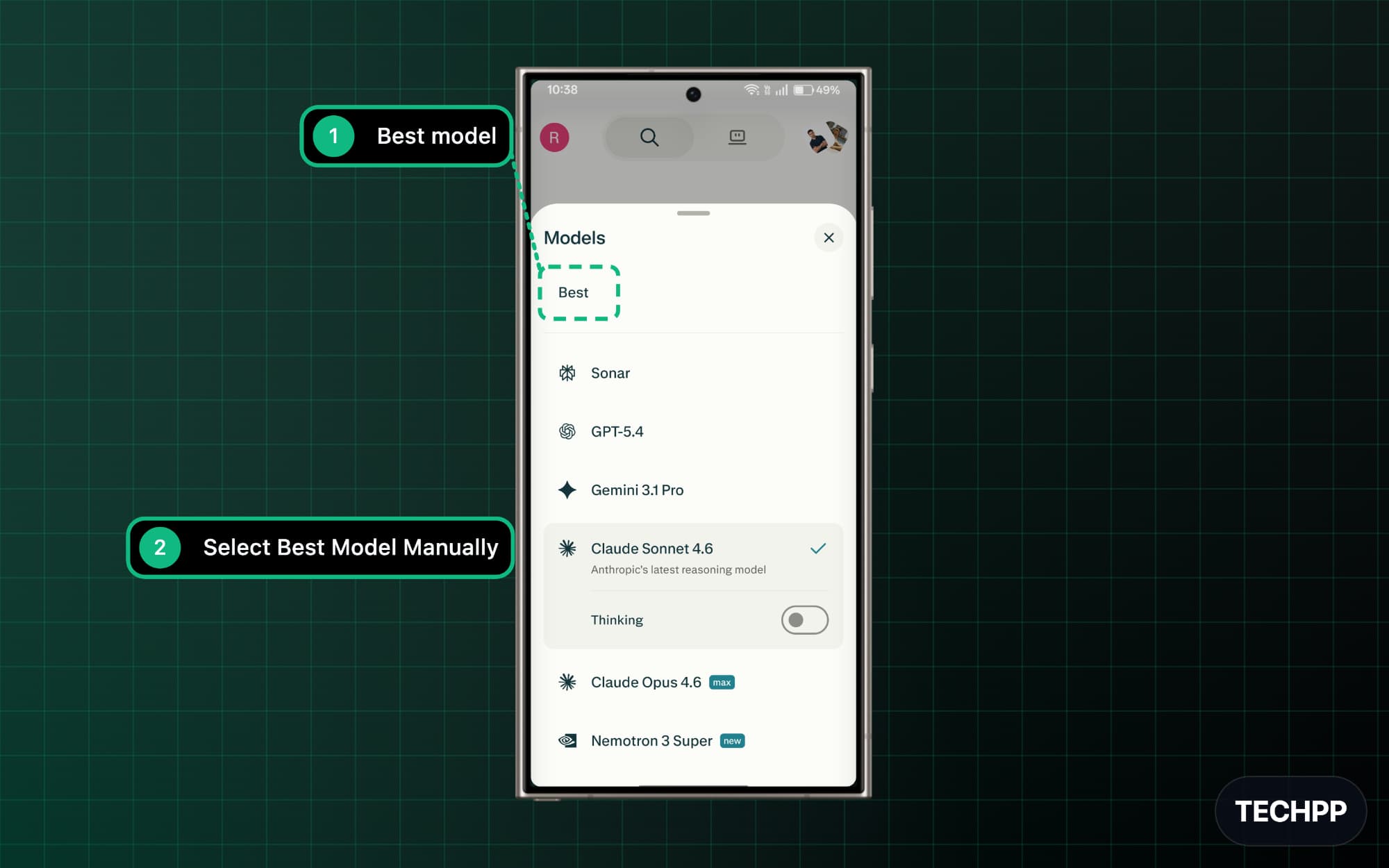
Selecting the model on the Perplexity app used to be a point of great confusion for users. However, with the recent update, Perplexity has streamlined the interface, making it easy for the user to select a model.
| Number | Symbol | What it does |
| 1 | Best mode | When you select this option, Perplexity automatically picks up the best model based on your query. |
| 2 | Select Best Model Manually | You can manually pick any model you want. Currently, it supports all popular models from Claude, Google, OpenAI, NVIDIA, and many more. You can also enable thinking for supported models. |
History Page
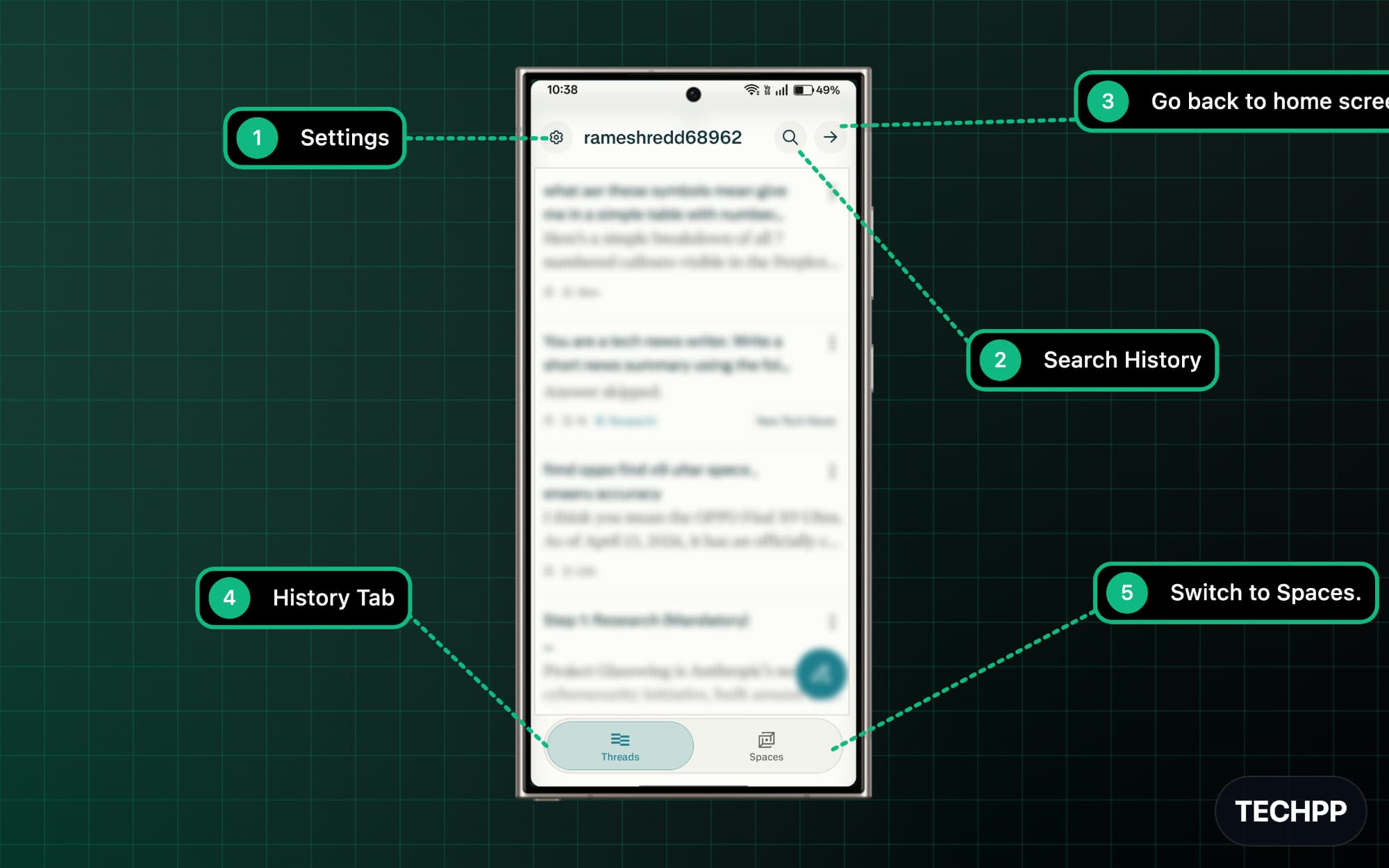
Unlike the other chat apps’ history tabs, Perplexity separates your history into Perplexity Spaces and Threads, and understanding the difference between the two is one of the most common points of confusion for new users. It also comes with other options, which can confuse most users. Here is what each option is meant to do:
| Number | Symbol | What it does |
| 1 | Settings | Open the main settings page in the Perplexity app. |
| 2 | Search history | Here you can search all your previous conversations. |
| 3 | Go back to the home screen | Takes you back to the main home screen. |
| 4 | History tab | The History tab is the default one. If you switch to the history, it is called “Threads.” You can also switch between the Spaces and History tab. |
| 5 | Switch to Spaces | Spaces are dedicated folders where all your conversations are stored. Perplexity calls them “Spaces.” You can switch to Spaces using the Spaces tab in the profile page. |
Spaces Page
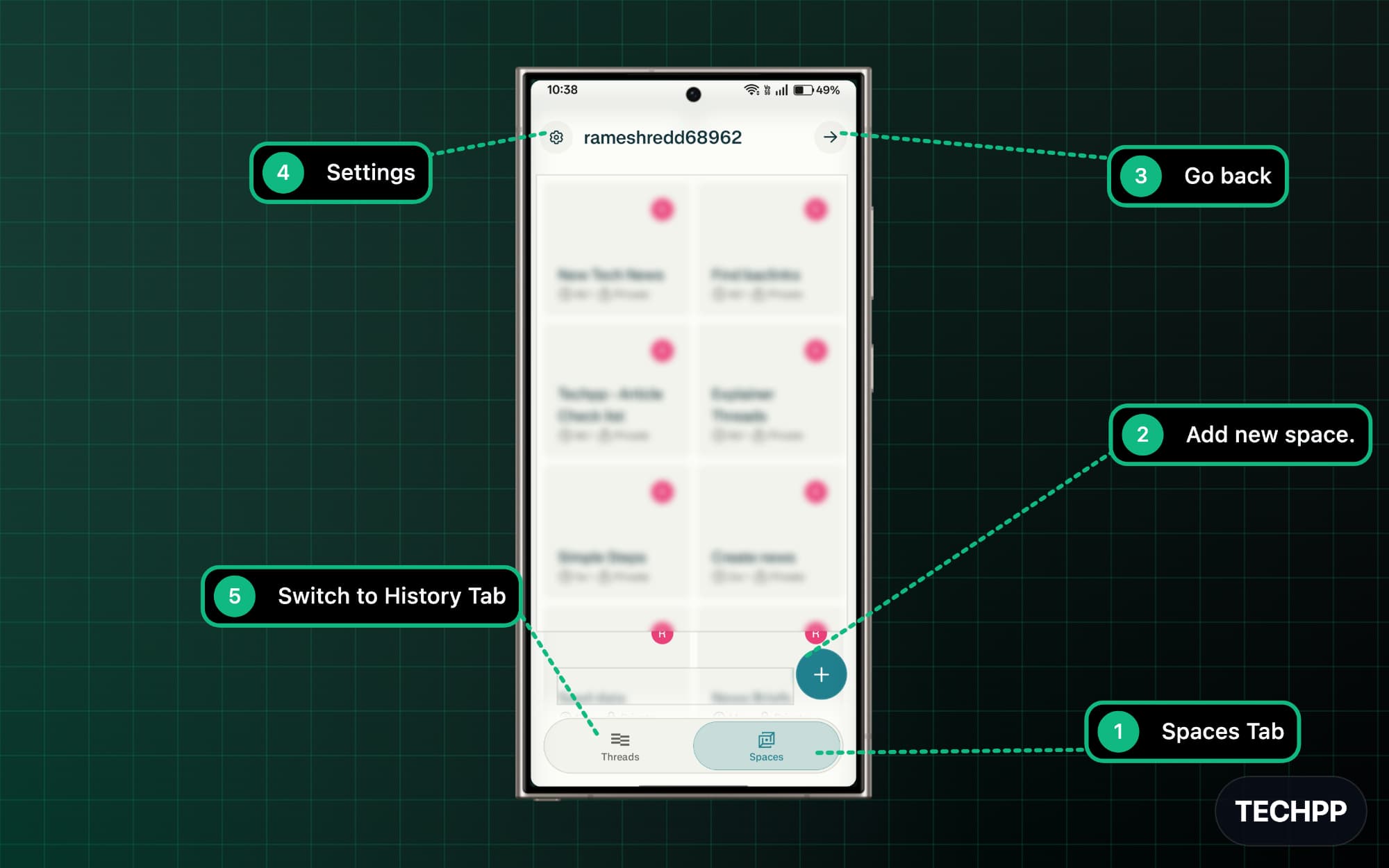
As I said before, spaces are dedicated folders that you can create in the mobile and desktop apps, where all your conversations will be stored. According to Perplexity’s official help documentation, each Space can also have its own custom AI instructions and dedicated file sources, which makes it especially useful for research projects or work topics where you want a focused context.
| Number | Symbol | What it does |
| 1 | Spaces tab | The Spaces tab lets you view all the spaces in one place. You can manage all your spaces here. |
| 2 | Add new space | Let’s you create a new space. |
| 3 | Go back | Takes you back to the home screen. |
| 4 | Settings | It opens the Perplexity app settings. |
| 5 | Switch to History tab | Switches from Spaces back to the Threads or History tab. |
Prompt Interface
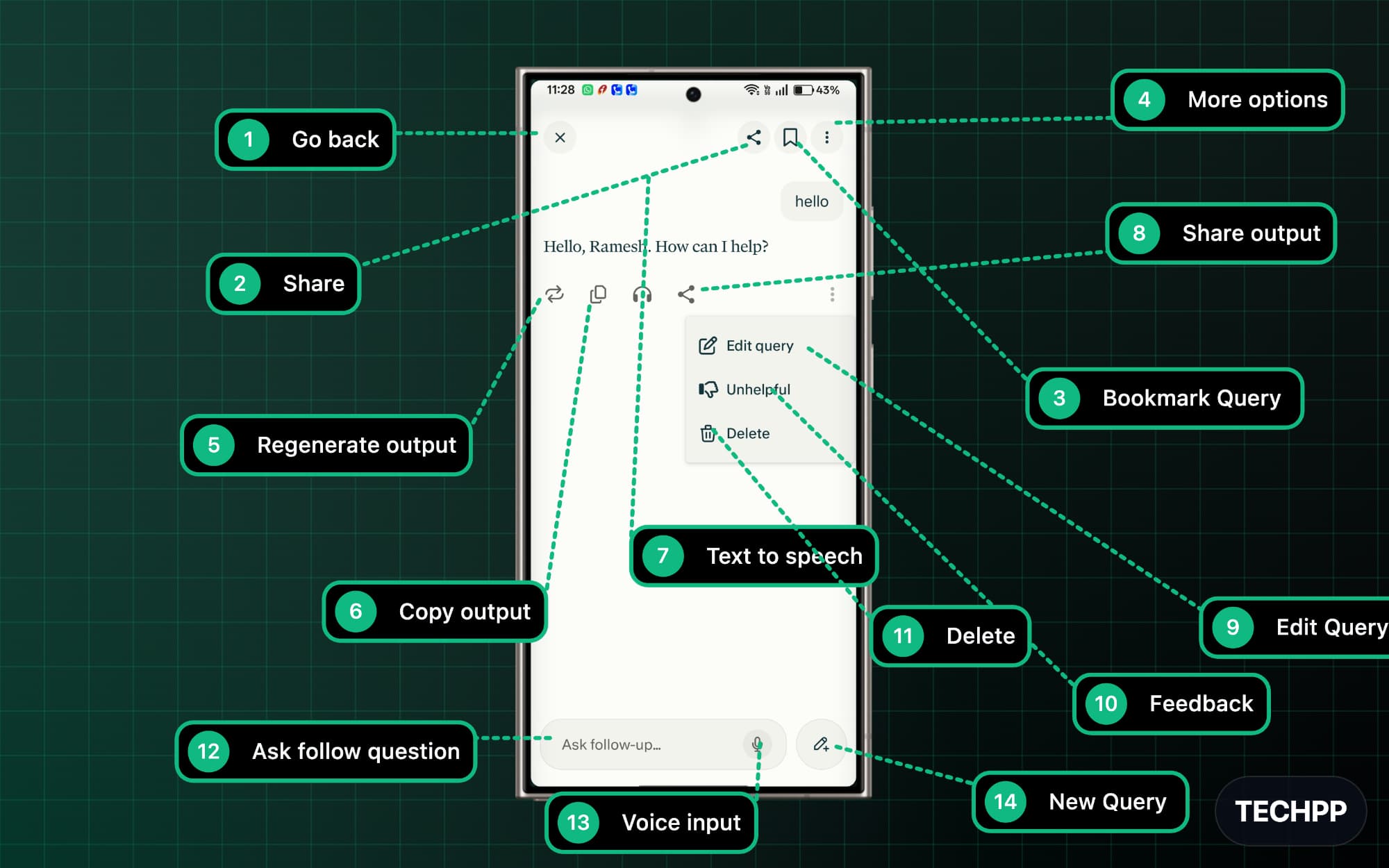
Similar to the desktop Perplexity prompt interface, there are many features that can confuse beginners. Here is what each feature is meant for:
| Number | Symbol | What it does |
| 1 | Go back | It closes the current chat and takes you directly to the home screen. |
| 2 | Share | Let’s you share this chat or answer with others. |
| 3 | Bookmark Query | You can save this conversation as a bookmark. This allows you to access it directly from your bookmarks without needing to search through your history. |
| 4 | More options | Brings more global options, including the ability to export, chart, and delete, and more. |
| 5 | Regenerate output | If you don’t like the current output, you can always tap on this icon to regenerate. While regenerating, you can select a different model. |
| 6 | Copy output | You can copy the output using this copy symbol. |
| 7 | Text to speech | Reads the answer out loud. The image points to the graph above. It was a mistake; the symbol is a headset symbol. |
| 8 | Share output | It lets you share the individual output. |
| 9 | Edit Query | Let’s let you edit your original query and try again. |
| 10 | Feedback | You can use this to provide feedback if you don’t like the answer or if the answer is unhelpful. |
| 11 | Delete | It deletes the individual-generated output. |
| 12 | Ask follow question | You can ask follow-up questions while the model is generating. |
| 13 | Voice input | You can use voice to text input if you don’t want to type manually on your keyboard.. |
| 14 | New Query | You can create a new query by tapping on the pencil plus icon. It takes you to the completely new chat interface. |
Voice Mode Interface
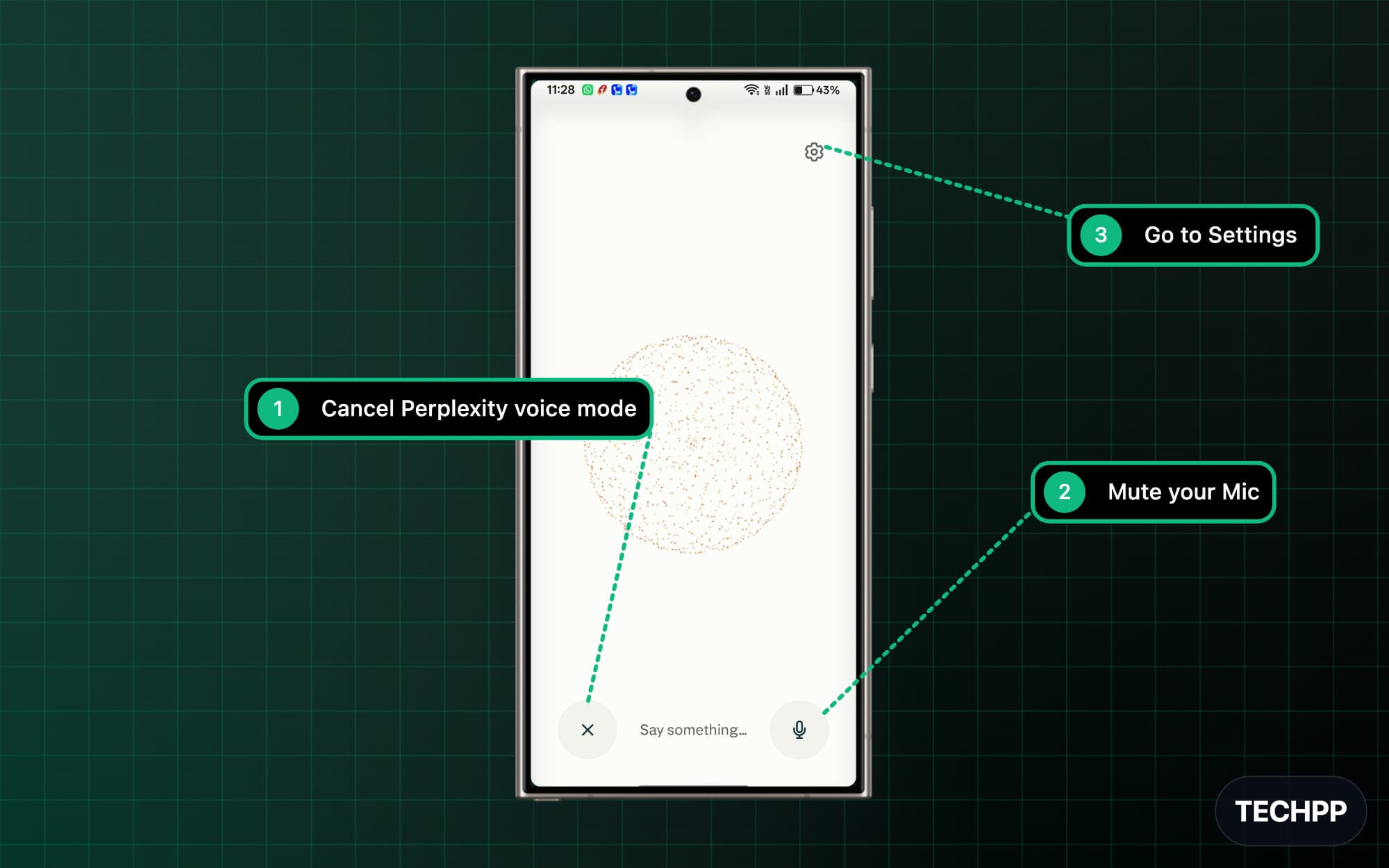
Similar to the desktop version, Perplexity also has a dedicated voice mode on mobile, which is very helpful. It also comes with similar functions, such as the ability to cancel the voice mode, mute your mic for more privacy, and control the voice mode settings
| Number | Symbol | What it does |
| 1 | Cancel Perplexity voice mode | You can cancel the Perplexity voice mode and go back to the chat interface. |
| 2 | Mute your mic | You can also mute your mic while you are not using it for more privacy. |
| 3 | Go to Settings | This opens the voice mode settings, where you can control the language and also the voice mode. |
Discover Page
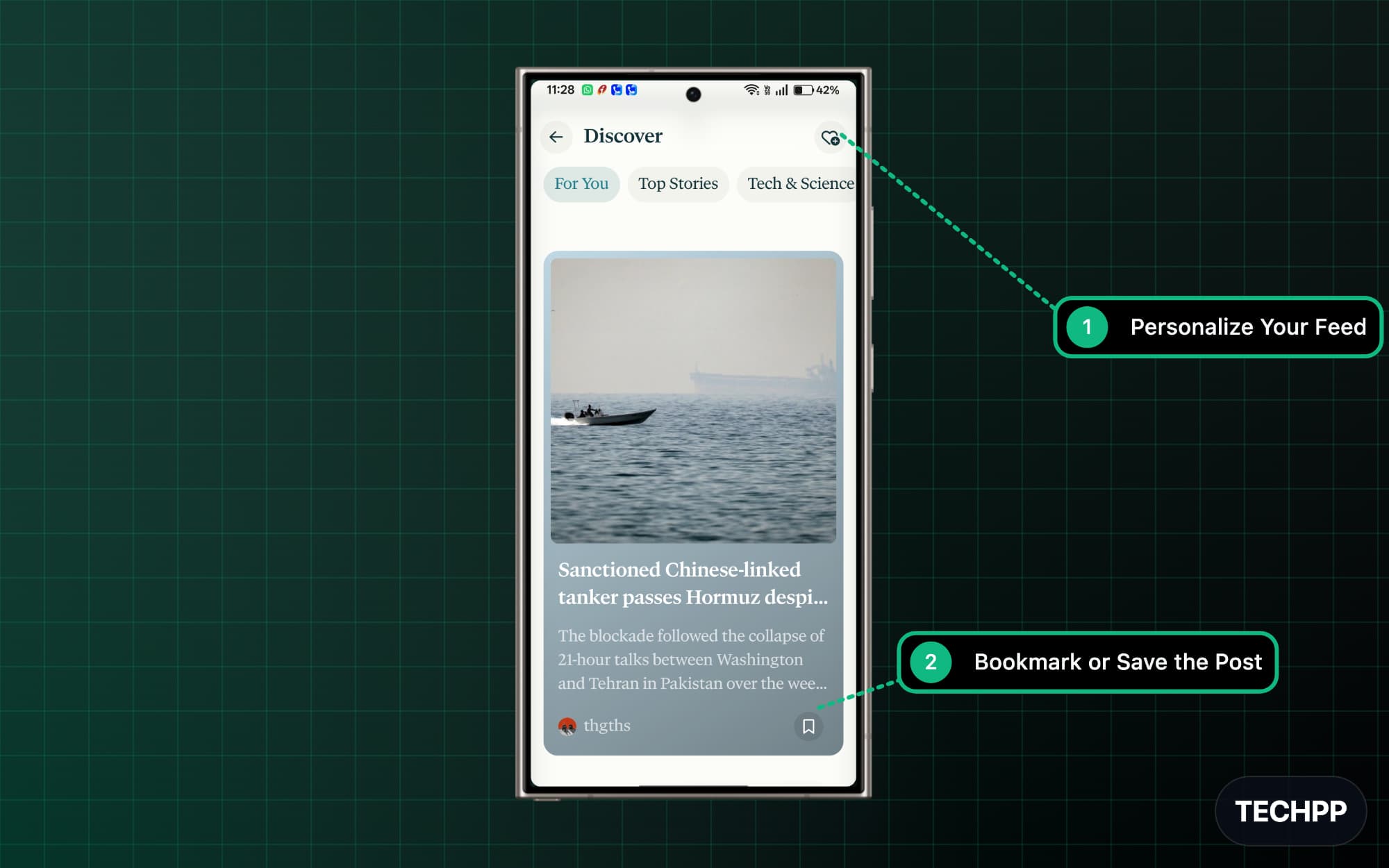
Finally, the Perplexity Discover tab: similar to Google Discover, Perplexity also has its own Discover feed where content is summarized by AI. You can directly access it on mobile by tapping on the image icon in the top right corner. Here is what each icon means on this page:
| Number | Symbol | What it does |
| 1 | Personalize your feed | You can customize the Discover feed based on your preference. Currently, you can select from Tech and science, business, arts and culture, and Sports and entertainment |
| 2 | Bookmark or save the post | You can bookmark this post. All your bookmarks will be saved to your dedicated bookmarks. |
That’s it. That is everything that you need to know about Perplexity features and icons on both mobile and desktop. As I mentioned, these AI apps are constantly testing and iterating with new features and interfaces, and Perplexity is one of them that’s ever-changing.
Since the app is not close to the mainstream AI apps, the above icons guide should help you know every feature and icon inside the app and navigate without ambiguity. I hope you find this guide helpful, and we will update this post if Perplexity launches a new app or changes its interface in the future. Until then, you can bookmark this post as a reference
FAQs on Perplexity Icons
1. What is the difference between Perplexity Search, Deep Research, and Computer mode?
Perplexity Search is a basic and default selection on both mobile and desktop. It is a simple search engine that searches the web and answers your queries. whereas the Deep Research Perplexity model analyzes more resources and uses more resources to answer your query in a more comprehensive way. Whereas Perplexity computer mode is an autonomous agent that performs tasks on behalf of you.
2. Does Perplexity show different icons for free users and paid users?
The Perplexity Pro vs free interface looks mostly the same. However, paid users unlock a few extra options that are completely hidden or locked in the free version, such as full access to advanced models and unlimited Deep Research queries.
3. Will Perplexity icons and menus change again in future updates?
Yes, Perplexity may change the app and web interface in the future. Currently, it is very close to the other apps, which are considered standard.
4. Can I change or simplify the Perplexity interface if I find too many options confusing?
Currently, there is no option to simplify the interface. You have to use the default interface provided by the Perplexity offering.
5. What do Spaces and Threads mean in Perplexity?
Spaces and Threads are unique to Perplexity, which many people can find confusing. To make it simple. Spaces are like folders where you can organize all your conversations in a single place. Each Space has its own sources to refer to. Threads are your history that Perplexity saves.

